python视频教程栏目以数字猜谜游戏介绍Tkinter。

Tkinter是Python的Tk GUI(图形用户界面)工具包和事实上的标准GUI 的标准接口。GUI使您可以使用大多数操作系统使用的可视项(例如窗口,图标和菜单)与计算机进行交互。这个功能强大的工具可用于构建各种项目,并且使可视化代码更加容易。
在本文中,我们将了解Tkinter的基础知识以及可在Python应用程序中使用的不同类型的小部件。在本文的后面,我们将使用Tkinter小部件开发一个很酷的数字猜测游戏。
今天,我们将介绍:
- Tkinter的基础
- Tkinter的小部件与示例
- 从头开始构建数字猜谜游戏
Tkinter的基础
在构建游戏之前,我们需要了解Tkinter的一些基础知识。Tkinter软件包是Tk GUI工具包的标准python接口。我们通常使用Tkinter包在应用程序中插入不同的GUI小部件,以使其更加用户友好。如果您在Linux,Windows或Mac上使用Python,则设备上已经安装了Python Tkinter。
立即学习“Python免费学习笔记(深入)”;
我们如何开发GUI应用程序?
创建GUI应用程序的基本过程如下:
Import the Tkinter ModuleCreate Main WindowAdd WidgetsEnter Main Loop
使用Python开发GUI应用程序涉及的步骤:
- 导入tkinter模块。
- 为我们的GUI应用程序创建主窗口。
- 现在,为我们的应用程序添加任意数量的小部件。
- 进入主事件循环以执行我们的主要功能。
现在让我们看看如何创建一个简单的tkinter窗口:
首先,我们将导入tkinter模块。它包含构建应用程序所需的所有功能,类和其他内容。现在,当我们导入模块时,我们需要初始化tkinter。为此,我们创建Tk( )根窗口小部件。现在,这将创建我们的主GUI窗口,我们将在其中添加小部件。此时,我们的主窗口只有标题栏。
我们应该只为我们的应用程序创建一个窗口,并且必须在添加任何其他小部件之前创建该窗口。之后,我们使用root.mainloop( )。除非输入,否则不会显示我们刚刚创建的主窗口mainloop。当我们按下关闭按钮时,我们的程序将退出主循环。在按下关闭按钮之前,我们的应用程序将一直运行。
用于创建简单的tkinter窗口的代码:
#import required libraries
from tkinter import *

# initialize tkinter :
root = Tk()

# enter the main Loop :
root.mainloop()复制代码
Tkinter的小部件与示例
- **按钮:**显示按钮。
- **画布:**绘制形状。
- **复选框:**将多个选项显示为复选框。
- **输入:**接受用户的单行输入。
- **框架:**组织其他小部件。
- **标签:**为其他小部件添加标题。
- **列表框:**向用户提供选项列表。
- 菜单**按钮:**在我们的应用程序中显示菜单。
- **菜单:**向用户提供各种命令。
- **消息:**显示多行文本字段。
- **单选按钮:**将选项数量显示为单选按钮。
- **比例尺:**提供滑块。
- **滚动条:**添加滚动功能。
- **文字:**以多行显示文字。
- **顶层:**提供单独的窗口容器。
- **Spinbox:**从固定输入值中选择。
- **PanedWindow:**水平或垂直排列小部件。
- **LabelFrame:**以复杂的结构提供空间。
- **tkMessageBox:**在应用程序中显示消息框。
现在,我们将简要介绍in out应用程序中需要的一些小部件。请记住,这里我们将以最简单的示例演示该小部件。每个小部件中还有许多可用功能。在开发游戏时,我们会看到其中的一些。
一些Tkinter小部件示例
按钮: 按钮小部件用于在我们的应用程序中显示按钮。通常,当我们按下一个按钮时,将有一个与之关联的命令。
# Import required libraries :
from tkinter import *

# Initialize tkinter :
root = Tk()

# Adding widgets :

# Add button :
btn = Button(root,text="PRESS ME",command=lambda:press())
# Place button in window :
btn.grid(row=0,column=0)

# Define the function :
def press()
  lbl = Label(root,text="You Pressed The Button")
  lbl.grid(row=0,column=1)

# Enter the main Loop :
root.mainloop()复制代码
**标签:**标签小部件用于为我们应用程序中的其他小部件提供单行标题。
# Import required libraries :
from tkinter import *

# Initialize tkinter :
root = Tk()

# Adding widgets :

# Add label :
lbl = Label(root,text="This is label")

# Place the button on window :
lbl.grid(row=0,column=1)

# Enter the main Loop :
root.mainloop()复制代码
**画布:**画布小部件用于绘制各种形状。
# Import required libraries :
from tkinter import *

# Initialize tkinter :
root = Tk()

# Adding widgets :
# Add canvas :
# Create canvas object :
c = Canvas(root,bg="3389db",height=250,width-300)

# Draw a straight line :
line = c.create_line(0,0,50,50)

# To fit the line in the window
c.pack()

# Enter the main loop
root.mainloop()复制代码
**CheckButton:**我们使用checkbutton显示可供用户使用的多个选项。在这里,用户可以选择多个选项。
# Import required libraries :
from tkinter import *

# Initialize tkinter :
root = Tk()

# Adding widgets :
# Add checkbutton :

# IntVar() hold integers
# Default value is 0
# If checkbox is marked, this will change to 1
checkvar1 = IntVar()
checkvar2 = IntVar()

# Create checkbutton
c1 = Checkbutton(root,text="BMW", variable=checkvar1)
c2 = Checkbutton(root,text="Audi",variable=checkbar2)

# To fit in the main window
c1.grid(row=0,column=0)
c2.grid(row=1,column=0)

# Enter the main Loop
root.mainloop()复制代码
Entry: Entry小部件用于接受用户的单行输入。
# Import required libraries
from tkinter import *

# Initialize tkinter
root = Tk()

# Adding widgets
# Label
lbl = Label(root,text="Enter your name:")
lbl.grid(row=0,column=0)

# Entry
e = Entry(root)
e.grid(row=0,column=1)

# Enter the main Loop
root.mainloop()复制代码
**框架:**用作容器小部件,以组织同一应用程序中的其他小部件
# Import required libraries
from tkinter import *

# Initialize tkinter
root = Tk()

# Adding widgets

frame = Frame(root)
frame.pack()

# Add button on Left
A = Button(frame,text="A")
A.pack(side = LEFT)

# Add button on Right
B = Button(frame,text="B")
B.pack(side = RIGHT)

# Enter the main Loop
root.mainloop()复制代码
**列表框:**用于向用户提供选项列表。
# Import required libraries
from tkinter import *

# Initialize tkinter
root = Tk()

# Adding widgets

# Create Listbox :
Lb = Listbox(root)

# Add items in list
Lb.insert(1,"A")
Lb.insert(2,"B")
Lb.insert(3,"C")
Lb.insert(4,"D")

# Place listbox on window
Lb.grid(row=0,column=0)

# Enter the main Loop
root.mainloop()复制代码
从头开始构建数字猜谜游戏
分步演练
当用户运行程序时,我们的代码将生成一个介于0到9之间的随机数。用户将不知道随机生成的数字。现在,用户必须猜测随机生成的数字的值。用户在输入框中输入值。之后,用户将按下检查按钮。该按钮将触发功能。该功能将检查用户输入的号码是否与随机生成的号码匹配。如果猜测的数字正确,则程序将显示正确的标签和实际数字(在这种情况下,该数字将与猜测的数字相同)。
现在,如果猜测的数字小于随机生成的数字,则我们的程序将显示TOO LOW标签,并且这还将清除输入框,以便用户可以输入新的数字。
如果猜中的数字高于实际数字,则我们的程序将显示TOO HIGH标签,并清除输入框。这样,用户可以继续猜测正确的数字。
如果标签显示TOO HIGH,则用户应该输入比他们猜想的数字低的数字。如果标签显示TOO LOW,则用户应该输入比他们第一次猜测的数字更大的数字。
我们的程序还将计算用户猜测正确数字所需的尝试次数。当用户最终做出正确的猜测时,它将显示总尝试次数。
如果用户想玩新游戏,则必须按下主关闭按钮。如果用户在我们的应用程序中按下“ **关闭”**按钮,则他们将完全退出游戏。
只需简单的步骤即可:
- 运行应用程序。
- 输入您的猜测。
- 按下检查按钮。
- 如果标签显示不正确,请猜测一个新数字。
- 如果标签显示正确,则显示尝试次数。
- 按下主关闭按钮以新号码重新开始游戏。
- 从我们的应用程序中按下关闭按钮以完全退出游戏。
我们将逐步向您展示如何使用Python tkinter构建上述游戏。
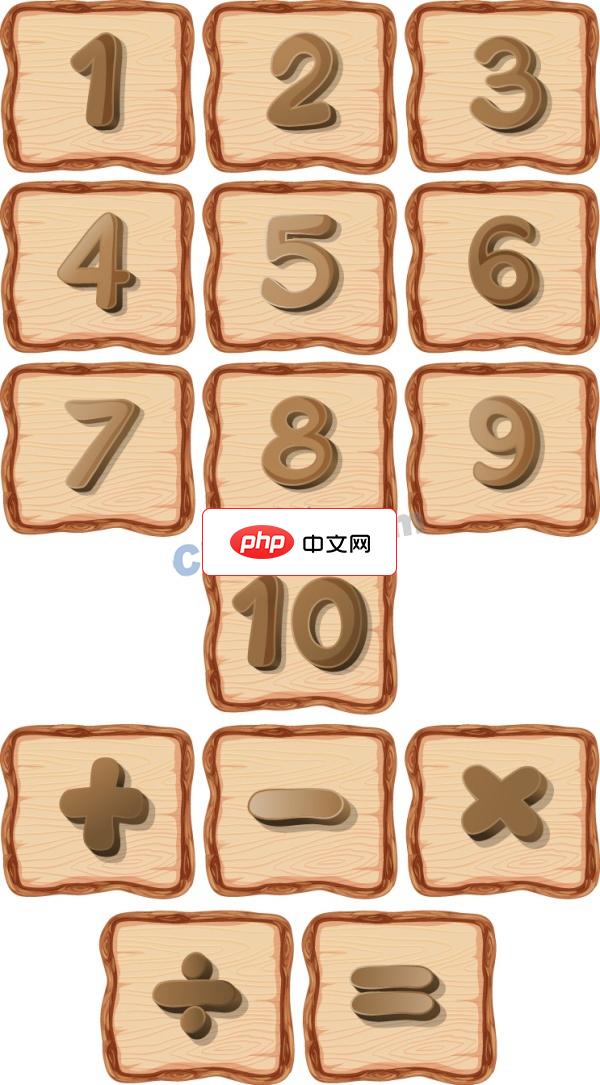
原木风数学元素设计矢量素材适用于教育材料(制作儿童学习材料,如数字学习卡片,让儿童在可爱和有趣的环境中学习数字)、活动海报(制作各种涉及数字主题的活动海报,如数学竞赛、数字猜谜游戏等)、产品设计(各种产品设计,如T恤、包包、家居用品等)、广告设计(各种广告宣传材料,如海报、横幅、传单等)等相关设计的AI格式素材。
图片素材在这里IT小站,此处下载数字猜谜游戏素材
步骤1:导入所需的库
# import required libraies :

from tkinter import * # to add widgets
import random # to generate a random number
import tkinter.font as font # to change properties of font
import simpleaudio as sa # to play sound files复制代码
步骤2:建立主Tkinter视窗
want_to_play = True

while want_to_play==True:

  root = Tk()
  root.title("Guess The Number!")
  root.geometry('+100+0')
  root.configure(bg="#000000")
  root.resizable(width=False,height=False)
root.iconphoto(True,PhotoImage(file="surprise.png"))复制代码- 首先,我们创建一个名为的变量
want_to_play,并将其值设置为True。当变量设置为时,我们的程序将生成一个新窗口True。当用户按下主关闭按钮时,它将退出循环,但是在这里,我们将变量设置为True,因此它将使用新生成的数字创建另一个窗口。 -
root = Tk( ):用于初始化我们的tkinter模块。 -
root.title( ):我们使用它来设置应用程序的标题。 -
root.geometry( ):我们使用它来指定我们的应用程序窗口将在哪个位置打开。 -
root.configure( ):我们使用它来指定应用程序的背景色。 -
root.resizable( ):在这里我们使用它来防止用户调整主窗口的大小。 -
root.iconphoto( ):我们使用它来设置应用程序窗口标题栏中的图标。我们将第一个参数设置为True。
步骤3:导入声音文件
# to play sound files
start = sa.WaveObject.from_wave_file("Start.wav")
one = sa.WaveObject.from_wave_file("Win.wav")
two = sa.WaveObjet.from_wave_file("Lose.wav")
three = sa.WaveObject.from_wave_file("Draw.wav")

start.play()复制代码现在,我们将使用一些将在各种事件中播放的声音文件。当我们的程序启动时,它将播放开始文件。当用户的猜测正确,用户的猜测错误以及用户关闭应用程序时,我们将分别播放其余三个文件。需要注意的一件事是它仅接受.wav文件。首先,我们需要将声音文件加载到对象中。然后我们可以.play( )在需要时使用方法播放它。
步骤4:为我们的应用程序加载图像
我们将在应用程序中使用各种图像。要首先使用这些图像,我们需要加载这些图像。在这里,我们将使用PhotoImage类加载图像。
# Loading images
Check = PhotoImage(file="Check_5.png")
High = PhotoImage(file="High_5.png")
Low = PhotoImage(file="Low_5.png")
Correct = PhotoImage(file="Correct_5.png")
Surprise = PhotoImage(file="Surprise.png")
your_choice = PhotoImage(file="YOUR_GUESS.png")
fingers = PhotoImage(file="fingers.png")
close = PhotoImage(file="Close_5.png")复制代码
步骤5:产生随机数
在这里,我们将生成1–9之间的随机数。我们将使用随机模块生成1–9之间的随机整数。
# generating random number
number = random.randint(1,9)复制代码
步骤6:修改字体
在这里,我们将使用字体模块来更改应用程序中的字体。
# using font module to modify fonts
myFont = font.Font(family='Helvetica',weight='bold')复制代码
步骤7:添加小部件
在这里,我们添加了应用程序的前两个小部件。请注意,输入框位于第2行,因为我们在第1行中添加了空格。在这里,我们将在标签中使用图像文件。我们用于.grid( )指定特定小部件的位置。
# Creating first label
label = Label(root,image=your_choice)
label.grid(row=0,column=1)

# Creating the entry box
e1 = Entry(root,bd=5,width=13,bg="9ca1db",justify=CENTER,font=myFont)
e1.grid(row=2,column=1)复制代码
步骤8:添加其他小部件
在这里,我们将添加其他一些小部件,例如按钮和标签。将有两个按钮,一个用于检查值,另一个用于永久关闭窗口。第二个标签将显示用户猜测的值是正确还是高还是低。它将相应地显示标签。如果用户的猜测正确,第三个标签将显示正确的数字。
第四个标签显示用户猜测正确值所花费的尝试总数。在这里请注意,这两个按钮将触发命令。在接下来的几点中,我们将对此进行研究。
# Creating check button :
b1 = Button(root,image=Check,command=lambda:show())
b1.grid(row=4,column=3)

# Creating close button :
b2 = Button(root,image=close,command=lambda:reset())

#Creaating second label :
label2 = Label(root,image=fingers)
label2.grid(row=6,column=1)

#Creating third label :
label3 = Label(root,image=Surprise)
label3.grid(row=10,column=1)

#Creating fourth label :
label4= Label(root,text="ATTEMPTS : ",bd=5,width=13,bg="#34e0f2",justify=CENTER,font=myFont)
label4.grid(row=12,column=1)复制代码
步骤9:显示正确的图像并将计数器设置为尝试值
当用户的猜测正确时,我们将在此处显示正确的数字图像。我们的数字存储方式如下:
- 1.png
- 2.png
- 3.png
- …
- 100.png
因此,我们的程序将采用实际的数字,并在其中添加.png字符串并打开该文件。我们还将设置计数器以计算尝试值。它将存储尝试猜测正确数字所需的尝试次数值。
# to display the correct image
num = PhotoImage(file = str(number)+str(".png"))

# Set the count to 0
count = 0复制代码
步骤10:当我们按下检查按钮时将触发的功能
在这里,每当用户按下检查按钮时,尝试次数的计数值将增加一。然后,我们将用户输入的值存储在名为answer的变量中。然后,我们将检查用户是否尚未输入任何值,并按下检查按钮,它将转到reset()功能,应用程序将关闭。
现在,我们必须将用户输入的值转换为整数,以便将其与实际数字进行比较。
def show():

    #Increase the count value as the user presses check button.
    global count
    count = count+1

    #Get the value entered by user.
    answer = e1.get()

    #If the entry value is null the goto reset() function.
    if answer=="":
        reset()

    #Convert it to int for comparision.
    answer = int(e1.get())

    if answer > number:
            #Play sound file.
            two.play()
            #Change the label to Too High.
            label2.configure(image=High)
            #Calls all pending idle tasks.
            root.update_idletasks()
            #Wait for 1 second.
            root.after(1000)
            #Clear the entry.
            e1.delete(0,"end")
            #Change the label to the original value.
            label2.configure(image=fingers)

        elif answer < number:
            #Play sound file.
            two.play()
            #Change the label to Too Low.
            label2.configure(image=Low)
            #Calls all pending idle tasks.
            root.update_idletasks()
            #Wait for 1 second.
            root.after(1000)
            #Clear the entry.
            e1.delete(0,"end")
            #Change the label to the original value.
            label2.configure(image=fingers)

        else:
            #Play sound file.
            one.play()
            #Show the CORRECT image.
            label2.configure(image=Correct)
            #Show the correct number.
            label3.configure(image=num)
            #Show the number of attempts.
label4.configure(text="ATTEMPTS : "+str(count))复制代码步骤11:“关闭”按钮将触发reset()功能
此函数会将want_to_play变量设置为,False以便我们的应用程序关闭并且不会再次启动。然后它将关闭我们的应用程序的主窗口。
# define reset() function
def reset():
  # Play sound file
  three.play()
  # Change the variable to false
  global want_to_play
  want_to_play = false
  # Close the tkinter window
  root.destroy()复制代码
步骤12:主循环
我们必须进入主循环才能运行程序。如果我们的程序没有这一行,那么它将行不通。我们的程序将保持在主循环中,直到我们按下关闭按钮。
# Enter the mainLoop
root.mainloop()复制代码
完整代码
#Import required libraries :

from tkinter import *
import random
import tkinter.font as font
import simpleaudio as sa

want_to_play = True

while want_to_play==True:

    root = Tk()
    root.title("Guess The Number!")
    root.geometry('+100+0')
    root.configure(bg="#000000")
    root.resizable(width=False,height=False)
    root.iconphoto(True,PhotoImage(file="surprise.png"))

    #To play sound files:
    start = sa.WaveObject.from_wave_file("Start.wav")
    one = sa.WaveObject.from_wave_file("Win.wav")
    two = sa.WaveObject.from_wave_file("Lose.wav")
    three = sa.WaveObject.from_wave_file("Draw.wav")

    start.play()

    #Loading images :
    Check = PhotoImage(file="Check_5.png")
    High = PhotoImage(file="High_5.png")
    Low = PhotoImage(file="Low_5.png")
    Correct = PhotoImage(file="Correct_5.png")
    Surprise= PhotoImage(file ="Surprise.png")
    your_choice = PhotoImage(file="YOUR_GUESS.png")
    fingers = PhotoImage(file = "Fingers.png")
    close = PhotoImage(file="Close_5.png")

    #To have space between rows.
    root.grid_rowconfigure(1, minsize=30)
    root.grid_rowconfigure(3, minsize=30)
    root.grid_rowconfigure(5, minsize=30)
    root.grid_rowconfigure(9, minsize=30)
    root.grid_rowconfigure(11, minsize=30)

    #Generating random number :
    number = random.randint(1,9)

    #Using font module to modify the fonts :
    myFont = font.Font(family='Helvetica',weight='bold')

    #Creating the first label :
    label = Label(root,image=your_choice)
    label.grid(row=0,column=1)

    #Creating the entry box :
    e1 = Entry(root,bd=5,width=13,bg="#9ca1db",justify=CENTER,font=myFont)
    e1.grid(row=2,column=1)

    #Creating check button :
    b1 = Button(root,image=Check,command=lambda:show())
    b1.grid(row=4,column=3)

    #Creating close button :
    b2 = Button(root,image=close,command=lambda:reset())
    b2.grid(row=4,column=0)

    #Creaating second label :
    label2 = Label(root,image=fingers)
    label2.grid(row=6,column=1)

    #Creating third label :
    label3 = Label(root,image=Surprise)
    label3.grid(row=10,column=1)

    #Creating fourth label :
    label4= Label(root,text="ATTEMPTS : ",bd=5,width=13,bg="#34e0f2",justify=CENTER,font=myFont)
    label4.grid(row=12,column=1)

    #To display the correct image :
    num = PhotoImage(file=str(number)+str(".png"))

    #Set the count to 0.
    #It stores the attempt value.
    count = 0

    def show():

        #Increase the count value as the user presses check button.
        global count
        count = count+1

        #Get the value entered by user.
        answer = e1.get()

        #If the entry value is null the goto reset() function.
        if answer=="":
            reset()

        #Convert it to int for comparision.
        answer = int(e1.get())

        if answer > number:
            #Play sound file.
            two.play()
            #Change the label to Too High.
            label2.configure(image=High)
            #Calls all pending idle tasks.
            root.update_idletasks()
            #Wait for 1 second.
            root.after(1000)
            #Clear the entry.
            e1.delete(0,"end")
            #Change the label to the original value.
            label2.configure(image=fingers)

        elif answer < number:
            #Play sound file.
            two.play()
            #Change the label to Too Low.
            label2.configure(image=Low)
            #Calls all pending idle tasks.
            root.update_idletasks()
            #Wait for 1 second.
            root.after(1000)
            #Clear the entry.
            e1.delete(0,"end")
            #Change the label to the original value.
            label2.configure(image=fingers)

        else:
            #Play sound file.
            one.play()
            #Show the CORRECT image.
            label2.configure(image=Correct)
            #Show the correct number.
            label3.configure(image=num)
            #Show the number of attempts.
            label4.configure(text="ATTEMPTS : "+str(count))

    #Define reset() function :
    def reset():
        #Play the sound file.
        three.play()
        #Change the variable to false.
        global want_to_play
        want_to_play = False
        #Close the tkinter window.
        root.destroy()

    #Enter the mainloop :
    root.mainloop()复制代码
相关免费学习推荐:python视频教程