



vue.js实现可拖拽菜单的方法:【import "@/assets/second.css";export default {name: "HelloWorld",directives: {move(el, bindings) {...】。

本文操作环境:windows10系统、vue.js 2.9、thinkpad t480电脑。
在给出正式的实现代码之前,我们要先来了解一点相关知识点。
知识点一:
vue中的自定义指令 directive
立即学习“前端免费学习笔记(深入)”;
// 注册一个全局自定义指令 `v-focus`
Vue.directive('focus', {
  // 当被绑定的元素插入到 DOM 中时……
  inserted: function (el) {
    // 聚焦元素
    el.focus()
  }
})

// 注册局部自定义指令

directives: {
  focus: {
    // 指令的定义
    inserted: function (el) {
      el.focus()
    }
  }
}
// 在此我们用的是局部
知识点二:js
	onmousedown 			:鼠标按下事件
	clientX	    			:时鼠标指针相对于浏览器页面(或客户区)的水平坐标
    document.getElementById :通过id获取节点
    offsetWidth				:获取的是盒子最终的宽
    onmousemove				:鼠标移动事件
    onmouseup				:鼠标释放事件
效果图:

云模块网站管理系统3.1.03
下载
云模块_YunMOK网站管理系统采用PHP+MYSQL为编程语言,搭载自主研发的模块化引擎驱动技术,实现可视化拖拽无技术创建并管理网站!如你所想,无限可能,支持创建任何网站:企业、商城、O2O、门户、论坛、人才等一块儿搞定!永久免费授权,包括商业用途; 默认内置三套免费模板。PC网站+手机网站+适配微信+文章管理+产品管理+SEO优化+组件扩展+NEW Login界面.....目测已经遥遥领先..
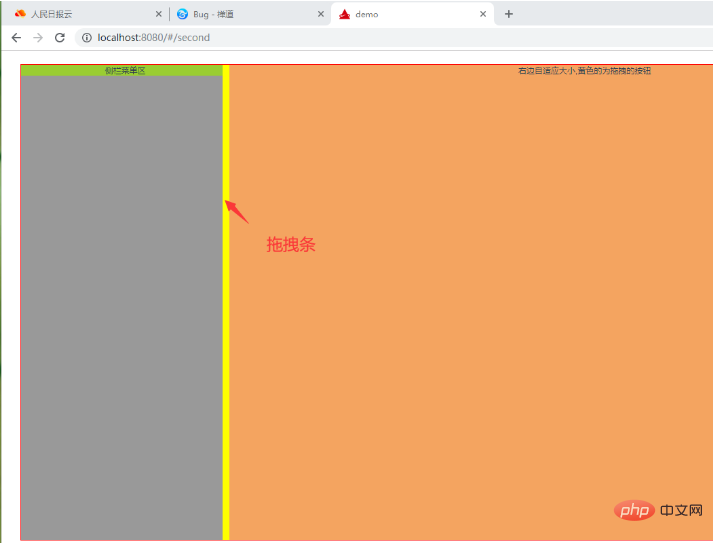

页面代码:
样式代码:
.myBox{
    width: 100%;;
    height: 700px;
    border: 1px solid red;
    display: flex;
}
#silderLeft{
    width: 250px;
    height: 100%;
    background-color: #999;
    position: relative;
    /* overflow-y: auto; */
}
/* 拖动条 */
.moveBtn{
    height: 100%;
    width: 10px;
    /* opacity: 0; */
    position: absolute;
    right: 0px;
    top: 0;
    cursor: col-resize;
    background-color: yellow;
}
.menuList{
    background-color: yellowgreen;
    /* height: 120%; */
}
.silderRight{
    height: 100%;
    background-color: sandybrown;
    flex: 1;
}
可以修改自定义命令,设置一个最小拖拽宽度
directives: {
    move(el, bindings) {
      el.onmousedown = function(e) {
        var init = e.clientX;
        console.log('init',init);
        var parent = document.getElementById("sidebar");
        var initWidth = parent.offsetWidth;
        document.onmousemove = function(e) {
          var end = e.clientX;
          // end - init表示鼠标移动的距离
          // end为鼠标移动的宽度,可用于设置最小宽度
          if(end > 250){
            var newWidth = end - init + initWidth;
            parent.style.width = newWidth + "px";
          }else{
            end = 250;
            // 最小宽度242
            parent.style.width = 242 + "px";
          }
        };
        document.onmouseup = function() {
          document.onmousemove = document.onmouseup = null;
        };
      };
    }
}推荐学习:php培训




