



react实现图片选择的方法:1、使用import引入“react-native-image-picker”插件;2、使用“{this.setState({uploadImgs: urls})}}src={uploadImgs}/>”调用实现图片选择上传即可。

本教程操作环境:Windows10系统、react18.0.0版、Dell G3电脑。
react怎么实现图片选择?
React Native七牛上传+本地图片选择
参考:
react-native-image-crop-picker图片选择并裁减 //这个看需求使用
https://github.com/ivpusic/react-native-image-crop-picker
react-native-image-picker图片选择
https://github.com/react-native-image-picker/react-native-image-picker
react-native-qiniu
https://github.com/buhe/react-native-qiniu
我只要一个多图片上传功能,所以就写简单一点
效果
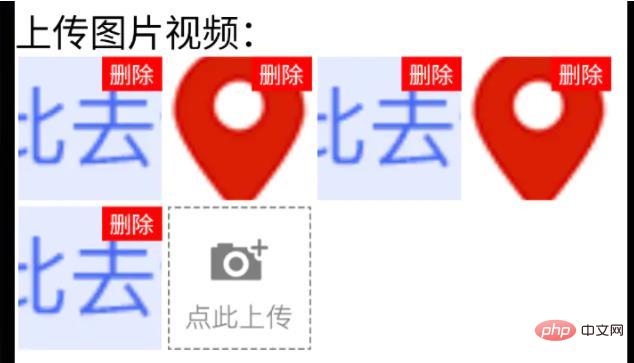
已上传状态

上传中状态
步骤
1、手机图片、视频选择功能
用react-native-image-picker插件
yarn add react-native-image-picker;ios需要pod install;
import {launchCamera, launchImageLibrary, ImageLibraryOptions, PhotoQuality} from 'react-native-image-picker';
/**
 * 从相册选择图片;
 * sourceType: 'camera'  打开相机拍摄图片
**/
export async function chooseImage(options: {
  count?: number,
  quality?: PhotoQuality
  sourceType?: 'camera',  //默认'album'
} = {}) {
  return new Promise(async(resolve, reject) => {
    const Opts: ImageLibraryOptions = {
      mediaType: 'photo',
      quality: options.quality || 1,
      selectionLimit: options.count || 1
    };
    const result = options.sourceType == 'camera'?
      await launchCamera(Opts) :
      await launchImageLibrary(Opts);
    resolve(result)
  })
}
/**
 * 从相册选择视频;
 * sourceType: 'camera'  打开相机拍摄视频
**/
export async function chooseVideo(options: {
  count?: number,
  quality?: 'low' | 'high'
  sourceType?: 'camera',  //默认'album'
} = {}) {
  return new Promise(async(resolve, reject) => {
    const Opts: ImageLibraryOptions = {
      mediaType: 'video',
      videoQuality: options.quality,
      selectionLimit: options.count || 1
    };
    const result = options.sourceType == 'camera'?
      await launchCamera(Opts) :
      await launchImageLibrary(Opts);
    resolve(result)
  })
}
2、七牛上传文件功能
class qiniuUpload {
  private UP_HOST = 'http://upload.qiniu.com';
  // private RS_HOST = 'http://rs.qbox.me';
  // private RSF_HOST = 'http://rsf.qbox.me';
  // private API_HOST = 'http://api.qiniu.com';
  public upload = async(uri:string, key:string, token:string) => {
    return new Promise((resolve, reject) => {
      let formData = new FormData();
      formData.append('file', {uri: uri, type: 'application/octet-stream', name: key});
      formData.append('key', key);
      formData.append('token', token);

      let options:any = {
        body: formData,
        method: 'post',
      };
      fetch(this.UP_HOST, options).then((response) => {
        resolve(response)
      }).catch(error => {
        console.error(error)
        resolve(null)
      });
    })
  }
   //...后面再加别的功能
}
const qiniu = new qiniuUpload();
export default qiniu;
import qiniu from '@/modules/qiniu/index'
...
  /**
   * 上传视频图片
   */
  uploadFile: async (filePath: string) => {
    const res = await createBaseClient('GET', '/v1/file')();  //这是接口请求方法,用来拿后端的七牛token、key

    if( !res ) {
      return res;
    }
    const { key, token } = res;
    const fileSegments = filePath.split('.');
    const fileKey = key + '.' + fileSegments[fileSegments.length - 1];
    try {
      const result = await qiniu.upload(filePath, fileKey, token)
      if(result && result.ok) {
        return {
          url: ASSET_HOST + '/' + fileKey,  //ASSET_HOST是资源服务器域名前缀
        };
      }else {
        return null
      }
    } catch (error) {
      return null;
    }
  },
...
3、多图上传组件封装
(这里Base、Image、ActionSheet都是封装过的,需看情况调整)
import React from 'react'
import {
  ViewStyle,
  StyleProp,
  ImageURISource,
  ActivityIndicator
} from 'react-native'
import Base from '@/components/Base';
import { Image, View, Text } from '@/components';   //Image封装过的,所以有些属性不一样
import ActionSheet from "@/components/Feedback/ActionSheet";  //自己封装
import styles from './styleCss';  //样式就不放上来了
interface Props {
  type?: 'video'
  src?: string[]
  count?: number
  btnPath?: ImageURISource
  style?: StyleProp
  itemStyle?: StyleProp
  itemWidth?: number
  itemHeight?: number  //默认正方形
  onChange?: (e) => void
}
interface State {
  imageUploading: boolean
  images: string[]
}
/**
 * 多图上传组件
 * * type?: 'video'
 * * src?: string[]   //图片数据,可用于初始数据
 * * count?: number    //数量
 * * btnPath?: ImageURISource   //占位图
 * * itemStyle?: item样式,width, height单独设
 * * itemWidth?: number
 * * itemHeight?: number  //默认正方形
 * * onChange?: (e:string[]) => void
**/
export default class Uploader extends Base {
  public state: State = {
    imageUploading: false,
    images: []
  };
  public didMount() {
    this.initSrc(this.props.src)
  }
  public componentWillReceiveProps(nextProps){
    if(nextProps.hasOwnProperty('src') && !!nextProps.src){
      this.initSrc(nextProps.src)
    }
  }
  /**
   *初始化以及改动图片
  **/
  private initSrc = (srcProp:any) => {
    if(!this.isEqual(srcProp, this.state.images)) {
      this.setState({
        images: srcProp
      })
    }
  }

  public render() {
    const { style, btnPath, count, itemStyle, itemWidth, itemHeight, type } = this.props;
    const { imageUploading, images } = this.state;
    let countNumber = count? count: 1
    return (


          {images.length > 0 && images.map((res, ind) => (


                 {
                    this.singleEditInd = ind;
                    this.handleShowActionSheet()
                  }}
                />
                删除


          ))}
          {images.length < countNumber  &&

              {imageUploading? (


                    上传中...


              ): (

                   {
                      this.singleEditInd = undefined;
                      this.handleShowActionSheet()
                    }}
                  />

              )}


          }


         {
              if(type == 'video') {
                this.handleChooseVideo('camera')
              }else if(this.singleEditInd !== undefined) {
                this.handleChooseSingle('camera')
              }else {
                this.handleChooseImage('camera')
              }
            }
          }, {
            name: '相册',
            onClick: () => {
              if(type == 'video') {
                this.handleChooseVideo()
              }else if(this.singleEditInd !== undefined) {
                this.handleChooseSingle()
              }else {
                this.handleChooseImage()
              }
            }
          }]}
        >

    );
  }
  private get itemW() {
    return this.props.itemWidth || 92
  }
  private get itemH() {
    return this.props.itemHeight || this.itemW;
  }

  private isEqual = (firstValue, secondValue) => {
    /** 判断两个值(数组)是否相等 **/
    if (Array.isArray(firstValue)) {
      if (!Array.isArray(secondValue)) {
        return false;
      }
      if(firstValue.length != secondValue.length) {
        return false;
      }
      return firstValue.every((item, index) => {
        return item === secondValue[index];
      });
    }
    return firstValue === secondValue;
  }
  private handleShowActionSheet = () => {
    this.feedback.showFeedback('uploaderActionSheet');  //这是显示ActionSheet选择弹窗。。。
  }
  private handleChooseImage = async (sourceType?: 'camera') => {
    const { imageUploading, images } = this.state;
    const { count } = this.props
    if (imageUploading) {
      return;
    }
    let countNumber = count? count: 1
    const { assets } = await this.interface.chooseImage({  //上面封装的选择图片方法
      count: countNumber,
      sourceType: sourceType || undefined,
    });

    if(!assets) {
      return;
    }
    this.setState({
      imageUploading: true,
    });

    let request:any = []
    assets.map(res => {
      let req = this.apiClient.uploadFile(res.uri)   //上面封装的七牛上传方法
      request.push(req)
    })
    Promise.all(request).then(res => {
      let imgs:any = []
      res.map((e:any) => {
        if(e && e.url){
          imgs.push(e.url)
        }
      })
      imgs = [...images, ...imgs];
      this.setState({
        images: imgs.splice(0,countNumber),
        imageUploading: false,
      },
        this.handleChange
      );
    })

  }
  private singleEditInd?: number;  //修改单个时的索引值
  private handleChooseSingle = async(sourceType?: 'camera') => {
    let { imageUploading, images } = this.state;
    if (imageUploading) {
      return;
    }

    const { assets } = await this.interface.chooseImage({   //上面封装的选择图片方法
      count: 1,
      sourceType: sourceType || undefined,
    });
    if(!assets) {
      return;
    }
    this.setState({
      imageUploading: true,
    });
    const res = await this.apiClient.uploadFile(assets[0].uri)   //上面封装的七牛上传方法
    if(res && res.url && this.singleEditInd){
      images[this.singleEditInd] = res.url
    }
    this.setState({
      images: [...images],
      imageUploading: false,
    },
      this.handleChange
    );

  }
  private handleChooseVideo = async(sourceType?: 'camera') => {
    const { onChange } = this.props
    let { imageUploading } = this.state;
    if (imageUploading) {
      return;
    }

    const { assets } = await this.interface.chooseVideo({
      sourceType: sourceType
    });
    if(!assets) {
      return;
    }
    this.setState({
      imageUploading: true,
    });
    const res = await this.apiClient.uploadFile(assets[0].uri)   //上面封装的七牛上传方法
    if(res && res.url){
      //视频就不在组件中展示了,父组件处理
      if(onChange) {
        onChange(res.url)
      }
    }
    this.setState({
      imageUploading: false,
    });

  }
  private handleDelete = (ind:number) => {
    let { images } = this.state
    images.splice(ind,1)
    this.setState({
      images: [...images]
    },
      this.handleChange
    )
  }
  private handleChange = () => {
    const { onChange } = this.props
    const { images } = this.state
    if(onChange) {
      onChange(images)
    }
  }
}
4、最后调用
import Uploader from "@/components/Uploader";
...
           {
              this.setState({
                uploadImgs: urls
              })
            }}
            src={uploadImgs}
          />
... 推荐学习:《react视频教程》




